Authors

Nathaniel Woodland
Senior Developer
A New Solution to An Old Problem
Content moderation is a data processing problem. For large sites with many content contributors, moderators can get bogged down catching obvious content policy violations without having time to do real editorial work.
Meanwhile, AI is great at fast, consistent classification of text, which is exactly the kind of work that can clog an editorial queue. It’s not a replacement for human judgment: it makes mistakes, it can be gamed, and it lacks context. But as a first-pass filter, AI can meaningfully shrink the noise that reaches a human reviewer.
This post walks through adding that type of AI content filter to an existing Drupal workflow using contrib modules and no custom code.
Implementing the Solution
Modules
The full solution uses zero custom code. Here are the key contrib modules:
- drupal/ai — Provider-agnostic AI framework
- drupal/ai_provider_openai — OpenAI integration for
drupal/ai - drupal/ai_integration_eca — ECA action plugins for AI operations, including a dedicated Moderation action
- drupal/key — Secure API key storage via environment variable
- drupal/eca — Event-Condition-Action automation engine
The Basic Setup
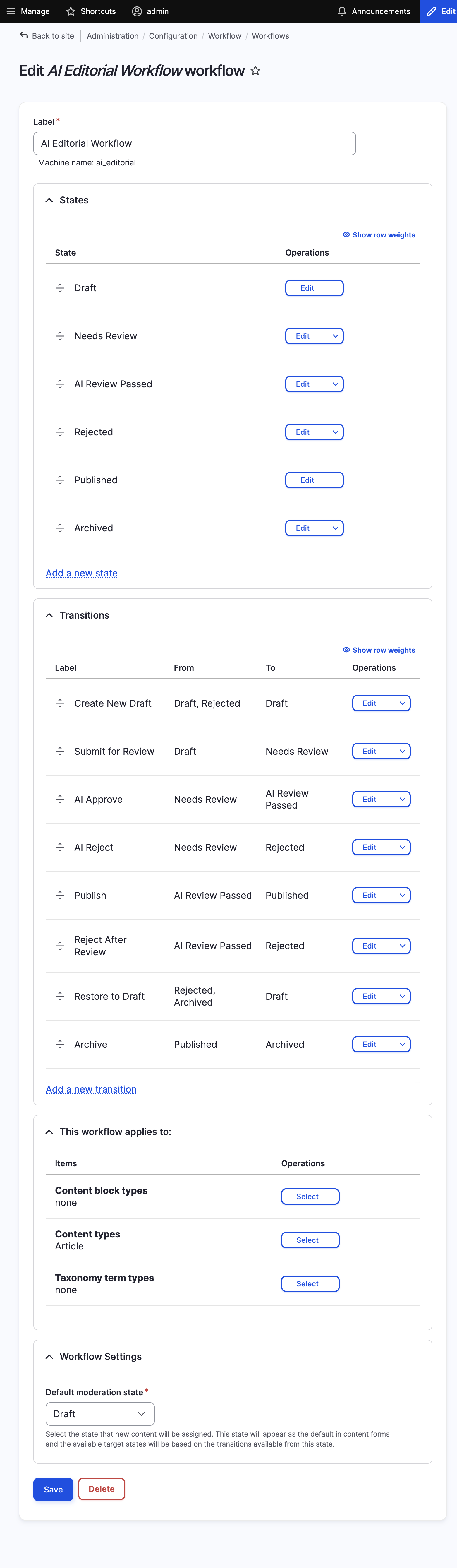
The assumption is that a site already has a working Content Moderation workflow. The AI gate slots in between author submission and the editor queue:
[Before]
Draft → Needs Review → Published

[After]
Draft → Needs Review → [AI gate] → AI Review Passed → Published
                               ↘ Rejected
To support this, the workflow needs two new states (AI Review Passed, Rejected) and two new transitions (AI Approve, AI Reject). Those transitions should not be granted to any UI role as they’re triggered only by ECA.
The five modules listed above need to be installed, an AI provider configured with a securely stored API key, and the updated workflow applied to the relevant content type.
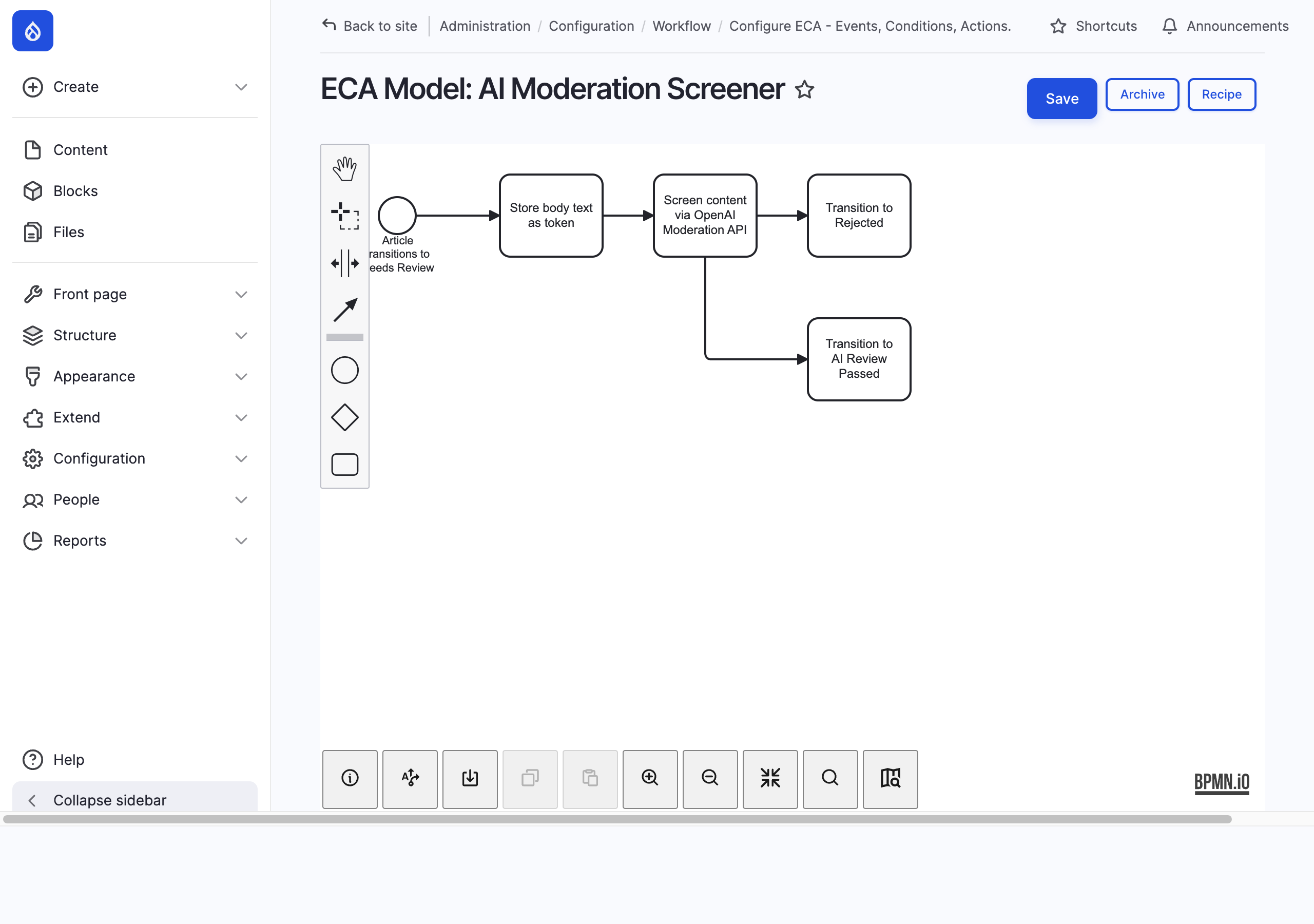
The ECA Model
This is the core of the implementation.
Create a new ECA model at Admin → Configuration → ECA. The model has five nodes:
1. Event — Workflow: state transition Fires when an article transitions to needs_review.
2. Action — Token: set value Stores [entity:body:value] into a token named moderation_input. This uses ECA’s token replacement, which resolves field values correctly at runtime. (A note on this: the more obvious Get field value action returns null for body fields in practice — token replacement is the right approach here.)
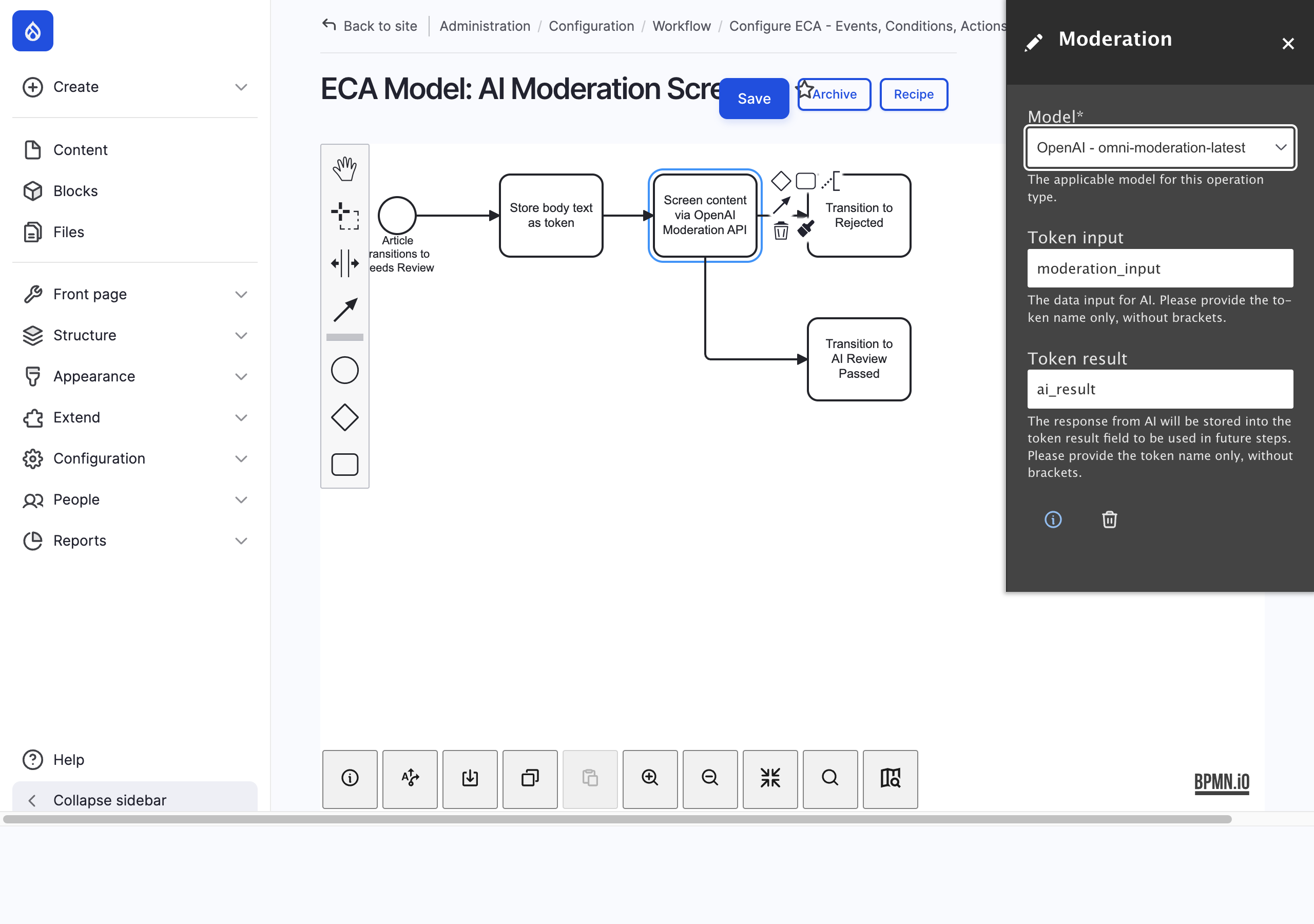
3. Action — Moderation (from AI Integration for ECA) Calls the AI provider’s moderation operation. Set model to openai / omni-moderation-latest, token input to moderation_input, and token result to ai_result. The result token exposes [ai_result:flagged] (1 or 0) and [ai_result:information] (per-category scores).
4. Action — Workflow: transition (condition: [ai_result:flagged] = 1) Transitions to rejected. Revision log: AI moderation: content flagged.
5. Action — Workflow: transition (condition: [ai_result:flagged] = 1, negated) Transitions to ai_review_passed. Revision log: AI moderation: content passed initial screening.
The conditions use ECA’s built-in Compare two scalar values plugin. Steps 4 and 5 share the same condition — one negated, one not.
Testing
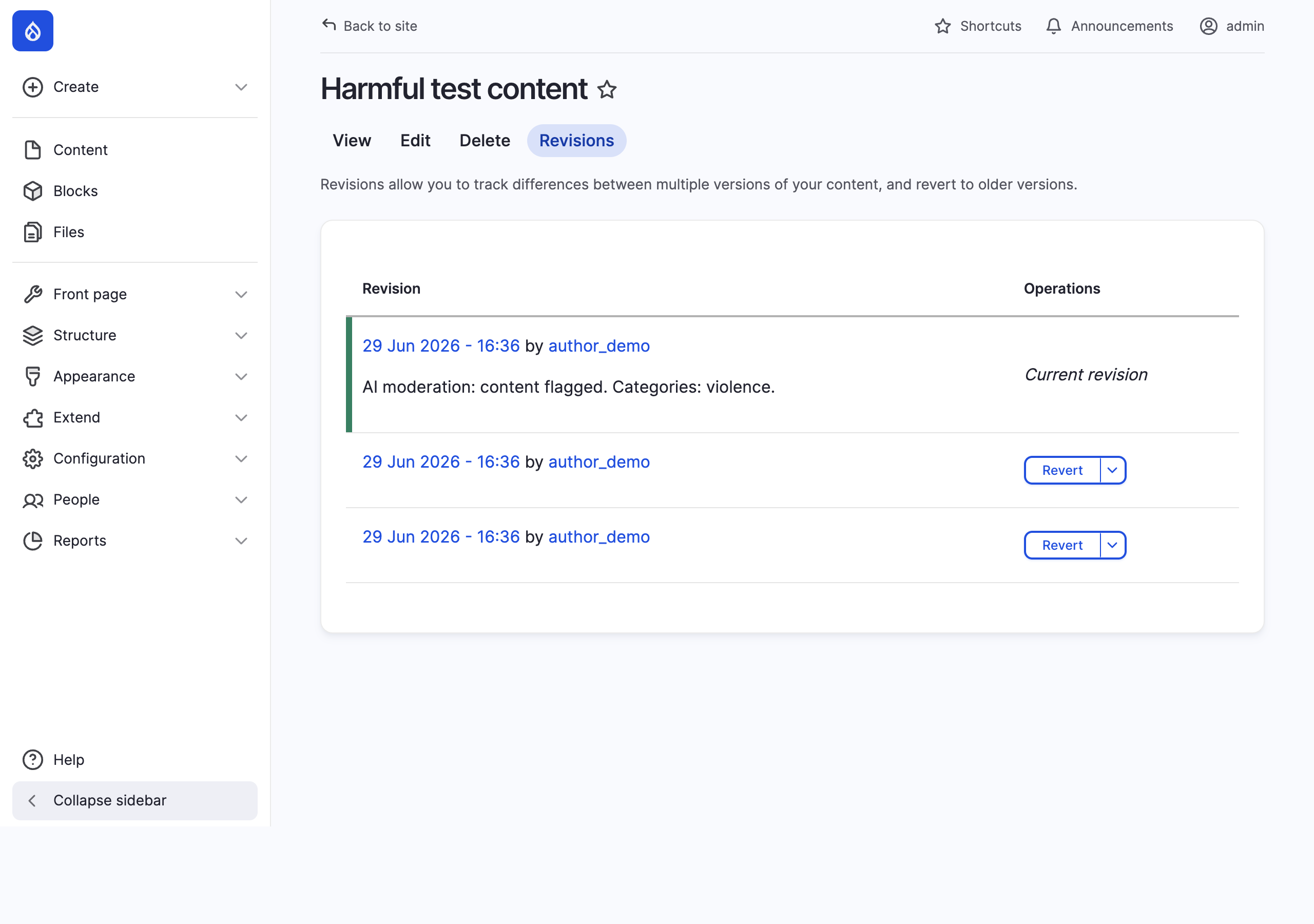
Submitting a benign article routes it to ai_review_passed with the pass log entry. Submitting content that violates the violence policy routes it to rejected with the flagged log entry. Both transitions appear in the node’s revision history with the AI-stamped message.
Going Further
Custom Moderation Prompts
The OpenAI Moderation API uses fixed categories. If your policy doesn’t map to them cleanly — community guidelines, brand safety rules, domain-specific restrictions — you can replace the Moderation action with a Chat action and a configurable system prompt. The rest of the ECA model stays the same.
With a Chat action returning structured JSON (response_format: json_object), you define exactly what the AI evaluates and how it reports back. The downstream ECA conditions check the response token the same way. This makes the screening logic editable in the UI without a code change or redeploy.
Giving Authors a Path Forward
A bare rejection with no context isn’t great author experience. ECA can handle the follow-on steps too. On the rejection branch, you can chain additional actions before or after the transition: send the author an email using [ai_result:information] to surface which categories were flagged, set a message on the form, or move the node to a Needs Revision state rather than a hard Rejected — giving authors the ability to edit and resubmit rather than starting over.
You could also model a full revision loop: Rejected → Needs Revision → Needs Review (with the AI check firing again on resubmit). Whether that’s appropriate depends on your content volume and how much trust you extend to repeat offenders, but the workflow and ECA config support it without any custom code.
Closing Notes
The drupal/ai_integration_eca module is what makes this approach work cleanly. Without it, inserting AI into an ECA model would require a custom action plugin. With it, the entire integration is UI-configurable and exportable as config.
A few things worth knowing before you build on this:
- The
ai_ecasubmodule insidedrupal/aiis deprecated as of 1.x. Usedrupal/ai_integration_eca(a separate package) instead. drupal/ai_integration_ecais still at RC as of this writing — worth checking for a stable release before going to production.
Read This Next
- Who Owns the Icon? Building Author-Friendly Icon Systems in Drupal
- Choosing a Multisite Approach in Drupal
- A/B Testing in Drupal Without the Enterprise Price Tag: A Practical Guide Using the A/B Test JS Module
- Drupal Metatag Module Basics for Content Editors
- Search Across Multiple Drupal Sites with Pantheon SOLR